Team and roles
Everything in Onagre belongs to an organization: sensors, incidents, services, agents, integrations. The people of an organization share all of it; nobody outside can see it. What each person can do depends on their role.
Roles#
Each member has one role. Roles go from Viewer to Admin, each including the rights of the previous ones.
| Role | Can |
|---|---|
| Viewer | See everything: dashboards, sensors, incidents, services, the Service Map, agents. |
| User | Create, edit, pause and delete sensors; acknowledge and comment incidents; schedule maintenance windows; manage integrations; add service dependencies; edit agents and run network discovery. |
| Manager | Manage services, environments, variables and secrets, and use variables and secrets in sensors; create agents and regenerate their tokens; invite and lock members. |
| Admin | Choose the plan and manage billing; rename the organization and set its time zone; edit or delete any integration — other members can only edit their own. |
Roles define what a person may change, never how monitoring behaves: a check, an incident or a notification works the same whoever created it.
Your plan sets how many members each role can have — see Plans.
Your team#
Configuration → Team opens Team members, which lists the members of the organization with their role and status. It requires the Manager role.
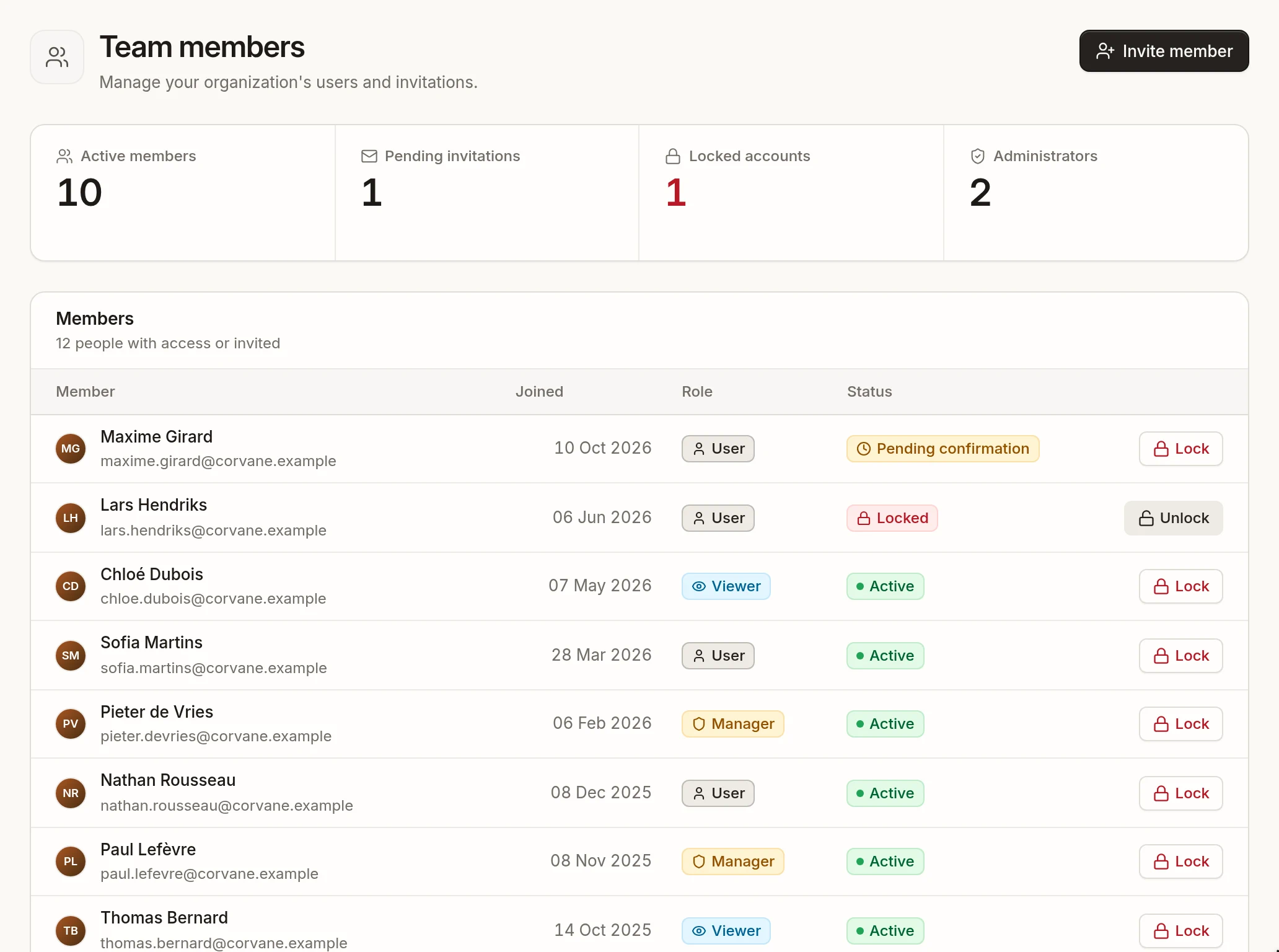
| Status | Meaning |
|---|---|
| Active | The member can sign in. |
| Invitation sent | The invitation has not been accepted yet. |
| Pending confirmation | The account exists but its email address is not confirmed yet. |
| Locked | The member cannot sign in. |
Invite a member#
- Click Invite member.
- Enter their First name, Last name and Email, and choose their Role. You cannot give a role higher than yours.
- Send. They receive an email with a link valid for 7 days.
Inviting members requires a paid plan, within the number of seats your plan gives for that role.
Lock a member#
Lock prevents a member from signing in — when someone leaves the team, for example. Unlock gives the access back. A member's role cannot be changed after the invitation, and members cannot be removed: lock them instead.
Each member has an email integration created for them: to stop alerting someone, remove that integration from your sensors — see Alerting.
Your profile#
Open Profile from the user menu:
- Avatar, First name and Last name — how your teammates see you. The Email address is your sign-in and cannot be changed.
- Organization name and Time zone — shared by the whole organization, changed by an Admin. The time zone is used for every date and time in Onagre, including sensor schedules such as Daily at 06:00.
- Theme — light, dark or your system's setting, saved on this device.
Sign-in#
- Forgot your password? Use Forgot password? on the sign-in page to receive a reset link. It is also the way to change your password.
- After 5 failed attempts, the account is locked for 15 minutes.
Create an organization#
Signing up at app.onagre.io creates a new organization on the Free plan. You become its Admin, and it starts with a General service, a Default environment and an email integration for you. See Monitor your first website.